Elementor is a brilliant design tool, but it may not fast out of the box. If you have built a beautiful website that now feels slow and sluggish, you are facing a common and fixable problem. As a performance expert, I’m going to show you the exact, actionable steps to transform your slow Elementor site into a high-performance machine.

Why Your Elementor Website is Running Slow (Quick Diagnosis)
Elementor is a popular WordPress page builder, empowering users to create dynamic, visually-rich sites. Its main attribute is flexibility, but at the cost of speed when not carefully optimised. Most slow Elementor sites suffer from heavy layouts, excess widgets, unoptimised assets, and hosting issues.
Common Performance Bottlenecks in Elementor
The most frequent causes of slow Elementor websites:
- Too many widgets and inner sections, creating complex DOM trees and large HTML outputs.
- Non-optimised global CSS and JS loading by Elementor and third-party add-ons.
- Large, uncompressed images and videos.
- Plugin conflicts and legacy bloat from deactivated features.
- Inefficient hosting or outdated PHP/server configurations.
Testing Your Current Speed: Essential Tools & Metrics
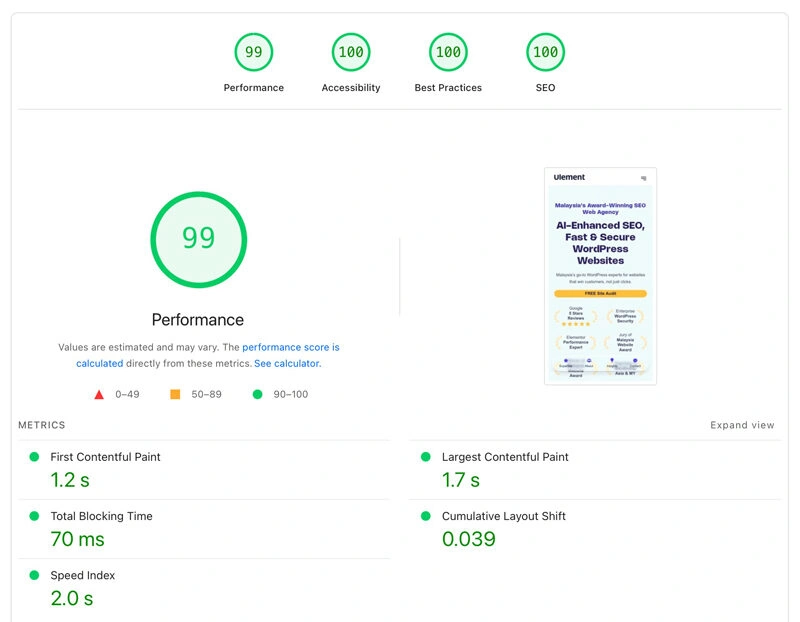
Use tools like Google PageSpeed Insights, or WebPageTest to benchmark:
- Time to First Byte (TTFB)
- Largest Contentful Paint (LCP)
- Total Blocking Time (TBT)
- Cumulative Layout Shift (CLS) Benchmark your homepage and key landing pages before making changes.
Understanding Core Web Vitals for Elementor Sites
Core Web Vitals are key user-centric performance metrics tracked by search engines:
- LCP measures main content load time.
- CLS tracks layout shifts that disrupt user reading.
- TBT assesses interactivity delays. Elementor’s structure and dynamic content can greatly impact these scores.
Quick Wins: How to Speed Up Elementor in 5 Minutes

Enable Elementor Performance Experiments
Navigate to Elementor > Settings > Features. Make sure “Optimized Markup” set to “Active.”

Enable Element Caching
Navigate to Elementor > Settings > Features. Make sure “Element Caching” set to “Active.”
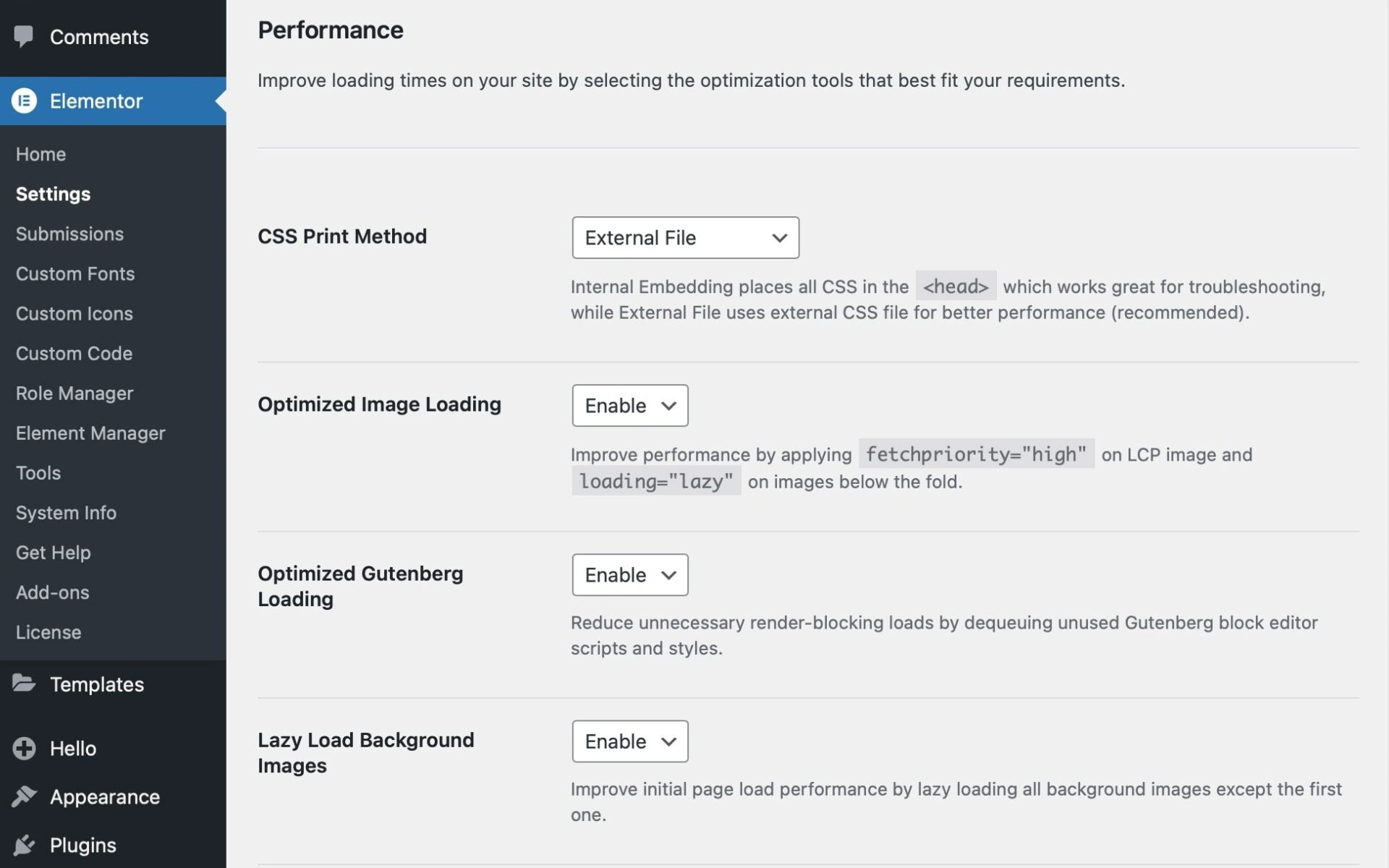
Change CSS Print Method to External File
Navigate to Elementor > Settings > Performance. Make sure “CSS Print Method” set to “External File”. This is critical, t moves CSS out of the HTML and into a cacheable external stylesheet.
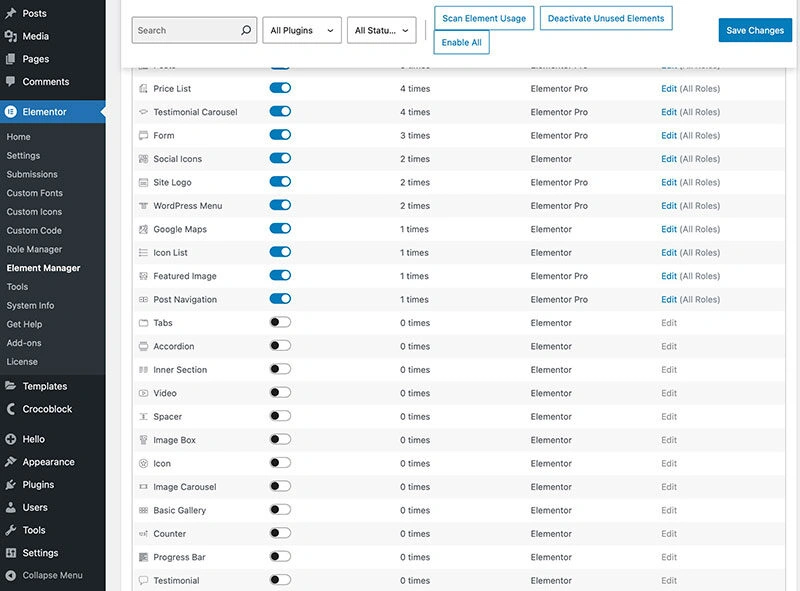
Disable Unused Elementor Widgets
Navigate to Elementor > Element Manager. Disable elements you don’t use for a cleaner interface, more focused creative experience, and improved performance.
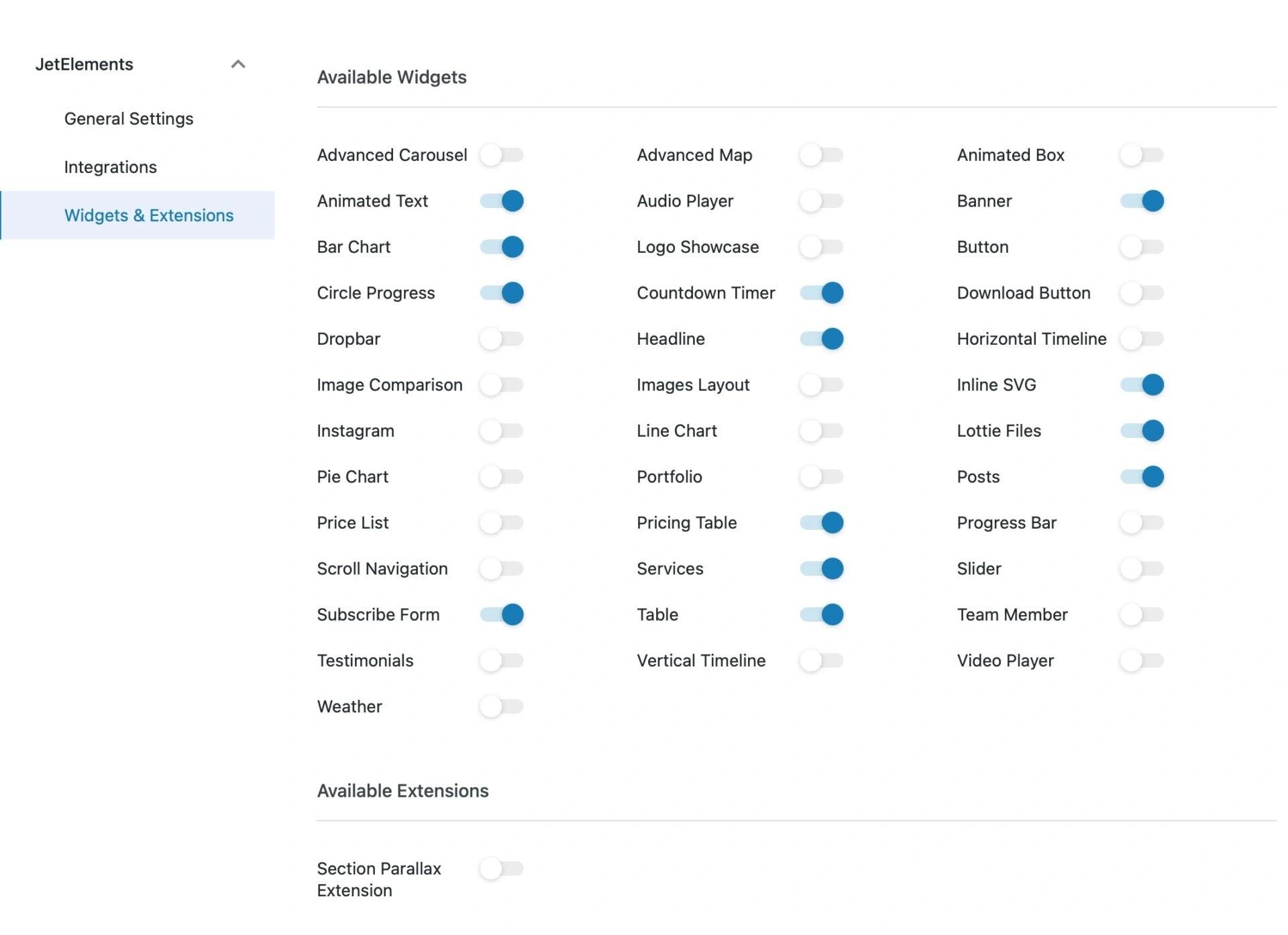
Disable Unused third-party Elementor Widgets & Features
If you have third-party Elementor add-on packs, go to their settings and disable any widgets you are not actively using to prevent their scripts from loading.
Elementor-Specific Settings for Maximum Speed
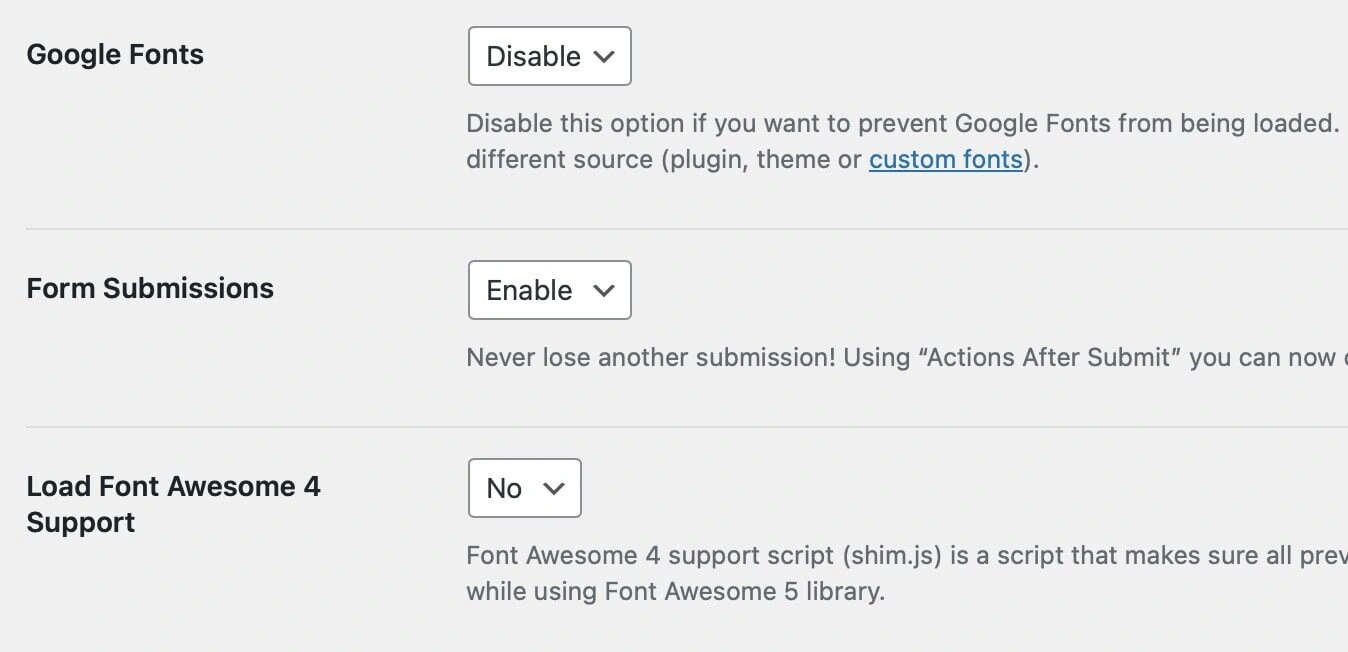
Optimise Elementor Manager Settings
Navigate to Elementor > Settings > Advanced, you can disable Google Fonts and Font Awesome icons if your design does not use them.
Disable Default Google Fonts & Icons
If your custom theme already loads the fonts you need, you can prevent Elementor from loading its own default versions to avoid redundancy.

Switch from Sections to Containers
If you are using a recent version of Elementor, always use the new “Container” element instead of the old “Section/Column” structure. Containers produce much cleaner and lighter code, which is a significant performance win.
Foundation Optimisation: Hosting & Server Setup

Choosing the Right Hosting for Elementor
Most importantly, choose fast hosting with SSD/NVMe storage and server-level caching. Our client site on our high-performance hosting, running Elementor with slider, multiple add-ons, still loads in under 2 seconds.
PHP Version & Memory Limit Optimisation
Use PHP 8.3+, and increase WP memory limit to 512MB if you use many widgets or plugins.
Server-Level Caching Configuration
Enable server caching (LiteSpeed Cache, Redis/Memcached) for dynamic content and user sessions.
CDN Integration for Global Performance
Implement a CDN (Cloudflare, BunnyCDN) to speed up asset delivery for visitors nationwide and globally.
Advanced Layout & Design Optimisation

Optimise Header & Footer with Lightweight CSS
Use lightweight theme or Elementor theme builder to build headers/footers using the minimum required CSS.
Reduce Sections, Widgets, and Columns
Fewer DOM elements mean less code and faster browser parsing—flatten nested layouts wherever possible.
Use CSS Animations Instead of JavaScript
Simple transitions with pure CSS cost less in execution time than JS-based animation.

Implement Lazy Rendering for Below-Fold Sections
Delay loading (or rendering) heavy asset sections until a user scrolls near them.
Image & Media Optimization Strategies
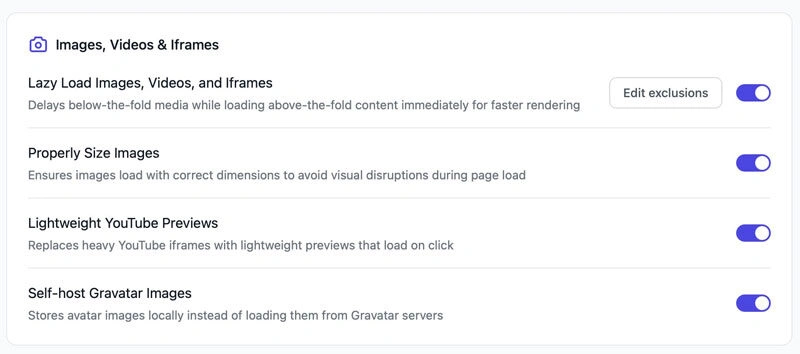
Convert Images to WebP Format
WebP images are up to 30% smaller than JPEG/PNG without loss of quality.
Implement Smart Lazy Loading
Native loading="lazy" for images/videos defers off-screen loading.
Preload Above-Fold Images
Preload only hero images and core branding assets for instant visual response.
Use Image CDN Services (ewww, Shortpixel)
An image CDN automatically compresses, resizes, and delivers images for every device.
Font Optimization for Faster Loading
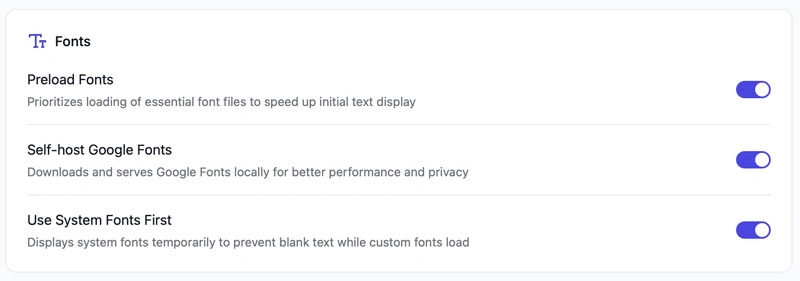
Host Fonts Locally Using WOFF2
Self-host Google Fonts in WOFF2 format for best performance/control.
Preload Critical Fonts
Add <link rel="preload"> tags for fonts used in menus and headings.
Implement Font-Display: Swap
Set font-display: swap in CSS to avoid invisible text during font loading.
Limit Font Variations & Weights
Reduce the number of font weights/styles loaded on each page.
CSS & JavaScript Performance Tuning
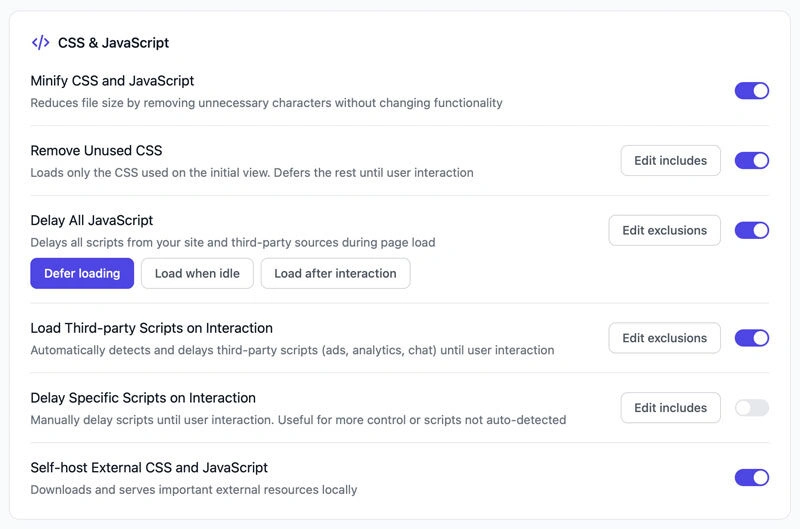
Remove Unused CSS with Elementor Exclusions
Use Elementor’s built-in tools or perfmatters to identify and exclude unused styles per page.
Delay Non-Critical JavaScript
Defer scripts that don’t impact first paint, like analytics or chat widgets.
Minify and Combine Files
Compress and combine CSS/JS files to reduce total requests and size.
Eliminate Render-Blocking Resources
Move critical CSS inline and non-essential styles/scripts below the fold.
Plugin & Theme Optimisation
Choose Lightweight, Elementor-Optimised Themes
Themes like Hello Theme, Blocksy, or GeneratePress are engineered for Elementor speed and compatibility.
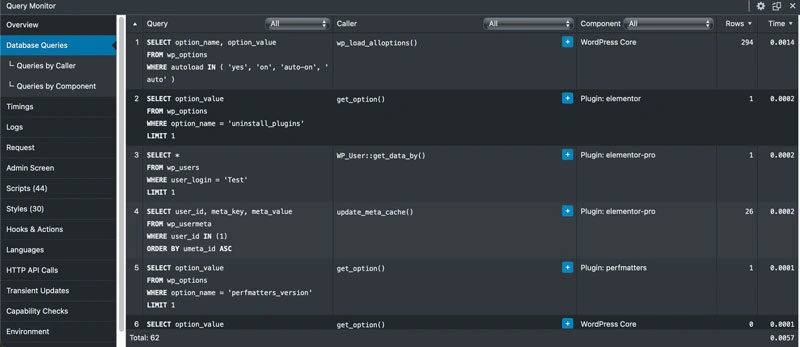
Audit Plugins for Performance Impact
Test all active plugins’ effect on Time to First Byte and asset bloat; remove or replace heavy ones. May use Query Monitor to check which plugin take longer time to load.
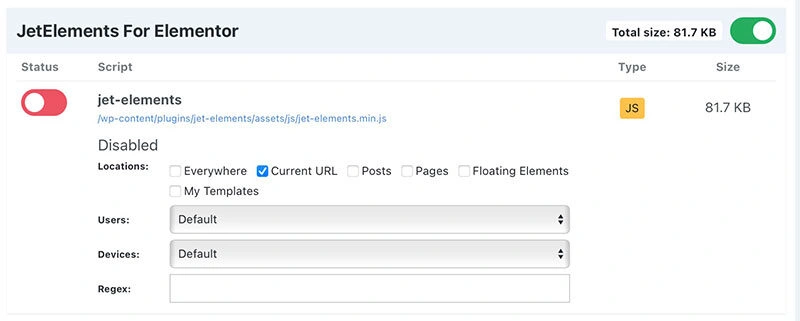
Disable Plugins on Specific Pages
Use perfmatters‘s Script Manager to only load plugins on required pages.
Remove Gutenberg Block Library
If not using Gutenberg, dequeue its backend and frontend assets to reduce bloat.
Database & Backend Optimisation
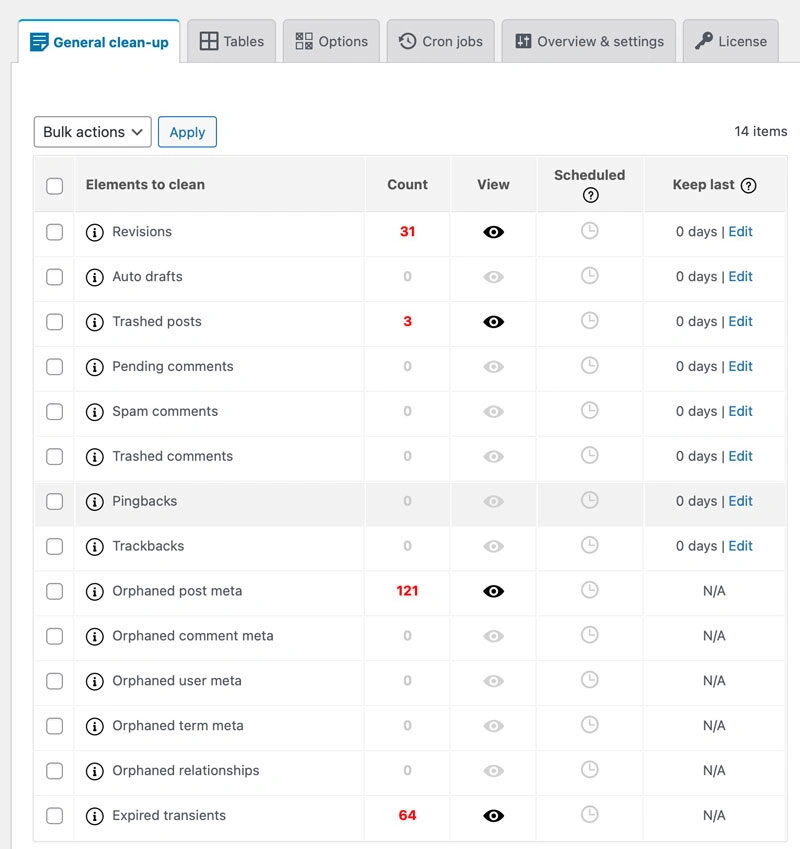
Clean Elementor Revision History
Limit or purge page/post revisions to reduce DB size.
Optimise Database Tables
Use plugins like Advanced Database Cleaner to clean overhead and index tables.
Remove Transients & Expired Data
Clear temporary options and cache transients not in use.
Limit Post Revisions
Set define('WP_POST_REVISIONS', 5); in wp-config.php to limit clutter from frequent saves.
Mobile-Specific Speed Optimisation
Optimise Responsive Breakpoints
Set clear breakpoints and test commonly-used devices for unnecessary elements.
Mobile-First Design Approach
Start layouts with mobile in mind—less content, fewer columns, simple navigation.
Reduce Mobile-Specific Elements
Deactivate sliders, background videos, or heavy JS that hinders mobile load.
Fixing Slow Elementor Editor Performance
Increase Editor Memory Limit
Set define('WP_MEMORY_LIMIT', '512M'); in wp-config.php for large projects.
Disable Editor Loader Method
Navigate to Elementor > Settings > Advanced, try toggling the loader method for faster backend use.
Clear Editor Cache Regularly
Flush Elementor’s internal cache to prevent backend slowdowns.
WooCommerce + Elementor Speed Optimisation
Optimise Product Pages
Use minimal widgets/products per page. Preload only essential product images. Lazy load reviews/tabs.
Cart & Checkout Performance
Streamline checkout with fewer steps, reduce AJAX calls, and cache checkout pages if possible.
AJAX Loading Strategies
Batch or defer AJAX requests wherever possible to lighten real-time processing.
Best Speed Optimization Plugins for Elementor
Cache Plugins Comparison
- FlyingPress: Best for most users, powerful automation. Combined with FlyingCDN that is powered by CloudFlare Enterprise is the best combo inthe marketing. It can easily help you optimise for Core Web Vitals.
- LiteSpeed Cache: Excellent for LiteSpeed servers, robust page/image/CDN options.
Image Optimisation Plugins
- ShortPixel, eWWW: Automated compression, lazy loading, and CDN integration.
Database Cleanup Tools
- Advanced Database Cleaner: Regularly tidy database bloat for sustained speed gains.
Monitoring & Maintaining Speed Performance
Set Up Regular Speed Testing
Schedule weekly/monthly automated tests using GTmetrix or PageSpeed Insights.
Track Core Web Vitals Progress
Continually monitor LCP, CLS, and TBT scores; identify regressions quickly.
Performance Budget Guidelines
Establish clear maximums for asset size, total requests, and load times for all future updates.
Troubleshooting Common Speed Issues
High TTFB Problems & Solutions
Often caused by slow hosting, unoptimised website, high numbers of plugins, or unoptimised DB/configuration.
Cumulative Layout Shift Fixes
Set explicit element heights; preload key fonts; avoid injecting content above-the-fold dynamically.
JavaScript Execution Time Issues
Reduce 3rd party scripts, use async/defer loading, and audit custom code for bottlenecks.
Case Study: How Multiple Page Builders & Addons Turned a Website Into a Speed Nightmare
Background
A client hired a popular agency to redesign their site. To “give maximum flexibility,” the agency installed both the Avada theme with Avada builder and Elementor. Some pages were built in Avada, others in Elementor. Over time, a new marketing staff wanted a specific slider, so Revolution Slider was added as well. To achieve certain visual effects and widgets, the agency also installed over 10 separate Elementor addon packs.
The Resulting Attributes (Problems)
- Extremely bloated HTML/CSS/JS: Each builder, plus every active addon, injected its own code and scripts, multiplying the requests and page weight.
- Conflicting styles and JavaScript errors: Builders and addons used overlapping libraries, creating code conflicts and layout breaks.
- Impossible to maintain: Even simple updates required guessing which builder/addon controlled each section.
- Server resources maxed out: Page load hit 8 – 10 seconds, and mobile performance scores dropped into the red.
- Plugin update chaos: Security and feature updates became risky, as every new version threatened other tools.
- SEO disaster: Search engines struggled to render bloated code, leading to indexation issues and massive Core Web Vitals failures.
Speed Metrics After Audit
- Home page load time: 10.2 seconds
- Total requests: 290+
- LCP: 6.8 seconds (poor mobile rating)
- Total page size: 9MB+
- CLS: Unstable, due to mixed builder output and large images
The Fix
- Unified under a single builder (Elementor). Avada and WPBakery were fully removed, with all pages migrated to one layout system.
- Addon purge: Only 2 well-maintained, performance-oriented Elementor addon plugins were kept; the rest were removed, with native Elementor widgets or custom code used instead.
- Rebuild headers / footers using lightweight theme.
- Full image/media optimisation and deletion of legacy, unused assets/scripts.
- Enable all Elementor performance experiments and asset loading enhancements.
The Turnaround
- Home page load time dropped to 1.8 seconds
- Core Web Vitals passed on desktop and mobile
- Google indexed all major landing pages again
- Staff found it vastly easier to update, train, and maintain
Key Takeaway:
A website is not a playground for every shiny plugin or visual effect. Avoid duo (or triple!) page builder setups and resist the temptation to add endless widgets. A streamlined Elementor stack—well maintained and ruthlessly minimalist, is faster, more stable, and dramatically better for business.
If your site feels unmanageable and slow, a professional audit and plugin “detox” can restore performance and productivity, just like in this case.
My Expert Take: Stop Fighting Bloat with More Bloat
As an Elementor performance expert, I have analysed and fixed hundreds of slow websites. The single biggest mistake I see is business owners trying to solve a “too much” problem by adding “more”.
Their site is slow because of too many widgets, complex sections, and heavy add-ons. This often just adds more code, more potential conflicts, and more complexity to the problem.
The real, sustainable solution is a “less is more” philosophy. True performance doesn’t come from adding another layer of optimisation on top of a bloated foundation. It comes from stripping away what is unnecessary from the very beginning. This means starting with an ultra-lightweight theme, limiting the number of third-party add-ons, and achieving your design goals with the fewest possible widgets and containers. A minimalist approach is the most powerful tool for achieving a fast Elementor website.
Your Elementor Speed Optimisation Checklist
Achieving a fast Elementor website is not about finding one magic button. It is a systematic process of optimising every layer of your site, from the server foundation to the way you build your pages. By following this expert checklist, you can transform your slow site into a high-performance asset that provides a superior user experience and is rewarded by search engines.
If you need a professional audit or advanced troubleshooting, consult an Elementor performance specialist for expert, lasting results.
Get Your Professional Elementor Performance Audit Today.