You go to check your website, and instead of your homepage, you’re greeted by a blank white screen or a cryptic error message. Your heart sinks. A broken website is a stressful problem for any business owner, but in most cases, you don’t need to panic. The fix is often simpler than you think.

First Steps: What to Do Before Troubleshooting Any WordPress Error
Before you start changing anything, a few preparation steps are essential to prevent making the problem worse. This is the process I follow for every client.
1. Always Back Up Your Website First
This is the most critical rule. Before you attempt any fix, you must have a recent, complete backup of your website’s files and database. This is your safety net. If you make a mistake, you can restore the backup and get back to where you started.
2. Enable WordPress Debug Mode
WordPress has a built-in debug mode that can help you see the specific PHP errors causing the problem. You can enable this by editing your wp-config.php file. This can often turn a generic error message into a specific, actionable clue.
3. Have Your FTP/SFTP Credentials Ready
You will likely need to access your website’s files directly on the server. Make sure you have your FTP or SFTP login details (server address, username, password) handy. You can get these from your web hosting provider.
How to Troubleshoot the 5 Most Common WordPress Errors: A Step-by-Step Guide
Error 1: The White Screen of Death (WSoD)
This is maybe the most frustrating error, as it gives you no information at all—just a blank white screen.
What causes the White Screen of Death?
The WSoD is almost always caused by a PHP error. This usually stems from a conflict with a plugin, a problem with your theme, or an issue where a script has exhausted the server’s memory.
How to fix the White Screen of Death
- Disable all plugins. The fastest way to check for a plugin conflict is to use FTP to rename your
pluginsfolder insidewp-content. If your site comes back online, you know a plugin is the culprit. - Revert to a default theme. If disabling plugins doesn’t work, the issue may be your theme. Use FTP to rename your current theme’s folder, which will force WordPress to switch to a default theme.
- Increase your memory limit. Your server may not be allocating enough memory for WordPress to run properly.
Error 2: Error Establishing a Database Connection
This error is very clear: your website is unable to connect to its database. This means none of your content can be displayed.
What causes a Database Connection Error?
The most common cause is incorrect database credentials in your wp-config.php file. It can also be caused by an unresponsive or corrupted database server.
How to fix the Error Establishing a Database Connection
- Check your
wp-config.phpfile. This is the first and most important step. Double-check that your database name, username, password, and host are all correct. - Contact your web hosting provider. If your credentials are correct, the problem is likely with the database server itself. Your hosting provider’s support team can check the status of your database.
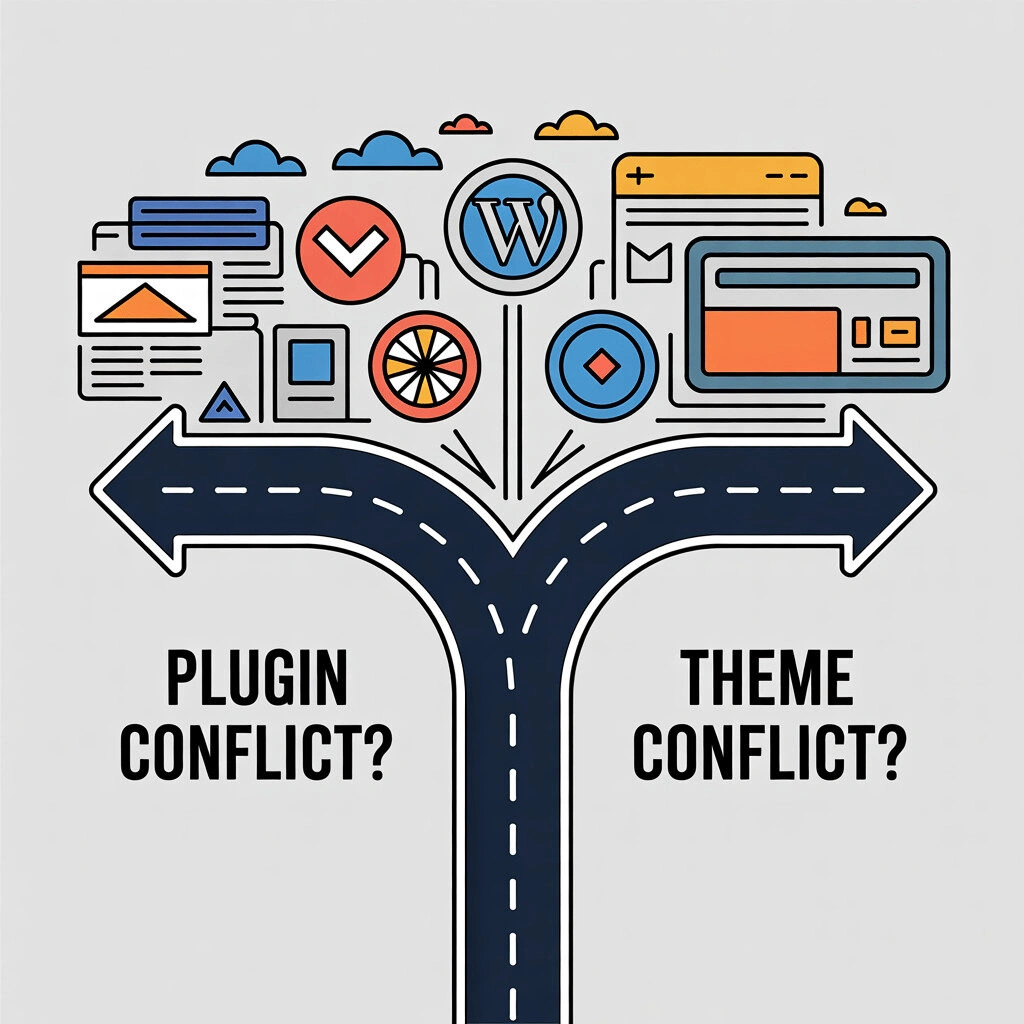
Error 3: 500 Internal Server Error
This is a generic error that means something went wrong on the server, but the server couldn’t be more specific about what the problem is.
What causes a 500 Internal Server Error?
The causes are often similar to the WSoD, usually a plugin or theme conflict. It can also be caused by a corrupted .htaccess file or by exhausting your server’s memory limit.
How to fix the 500 Internal Server Error
- Check for a corrupted
.htaccessfile. Log in via FTP, find your.htaccessfile, and rename it. If this fixes the issue, go to your WordPress settings and save your permalinks again to generate a new, clean.htaccessfile. - Follow the same steps as the White Screen of Death (disabling plugins and themes) as these are very common causes.
Error 4: WordPress Stuck in Maintenance Mode
When you update WordPress, it briefly goes into maintenance mode. Sometimes, if an update is interrupted or fails, your site can get stuck on this screen.
What causes the Maintenance Mode error?
When an update begins, WordPress creates a file named .maintenance in your site’s root directory. When the update finishes, it’s supposed to delete this file. If the file is not deleted, your site remains in maintenance mode.
How to fix the WordPress Stuck in Maintenance Mode error
The fix is very simple.
- Log in to your site via FTP.
- Find the
.maintenancefile in your root directory. - Delete the file. Your website will immediately come back online.
Error 5: 404 Not Found Error on Posts and Pages
This occurs when your homepage loads fine, but you get a “404 Not Found” error when you try to visit any other page on your site.
What causes a 404 Not Found error?
This is almost always caused by an issue with your permalink settings or your .htaccess file.
How to fix the 404 Not Found error
The fix for this is usually very easy.
- Go to your WordPress dashboard.
- Navigate to Settings > Permalinks.
- Simply click the “Save Changes” button without making any changes. This will flush and regenerate your permalink rules and
.htaccessfile, which usually solves the problem.
Proactive Tips to Prevent Common WordPress Errors
Use a Quality WordPress Hosting Provider
A good host provides a stable, secure, and well-configured environment, which can prevent many server-related errors from ever happening.
Implement a Regular Backup Schedule
Having daily, automated backups is your most important safety net. It means that even if a critical error occurs, you can always restore your site to a working version.
Keep Your Core, Themes, and Plugins Updated
Keeping your software up-to-date is the single best way to prevent errors and security issues caused by outdated code.
Test Updates on a Staging Site
Before you run updates on your live site, test them on a staging site first. This allows you to catch any potential plugin or theme conflicts in a safe environment.
FAQ
Conclusion: Keep Your WordPress Site Running Smoothly
Facing a WordPress error is a stressful but common part of managing a website. By understanding the causes of the most common issues and following a logical troubleshooting process, you can often get your site back online quickly. The key to long-term success, however, is a proactive approach focused on regular maintenance and best practices.
If you’re facing an error you can’t solve, or you’d rather have an expert handle your site’s health proactively, our team is here to help.