Here’s what I tell every client when their site goes down: 99% of WordPress problems have straightforward solutions. The key is approaching the problem methodically, not randomly clicking buttons and hoping for the best. This guide will transform you from a panicked website owner into a confident troubleshooter.

First, Don’t Panic! Initial Diagnosis Steps
Here’s what I tell every client when their site goes down: 99% of WordPress problems have straightforward solutions. The key is approaching the problem methodically, not randomly clicking buttons and hoping for the best. This guide will transform you from a panicked website owner into a confident troubleshooter.
Step 1: Is Your Website Down for Everyone or Just You?
Before you start tearing apart your website, verify the problem exists. Use a tool like “downforeveryoneorjustme.com“. This will tell you if the site is truly offline or if the issue might be with your own internet connection or computer.
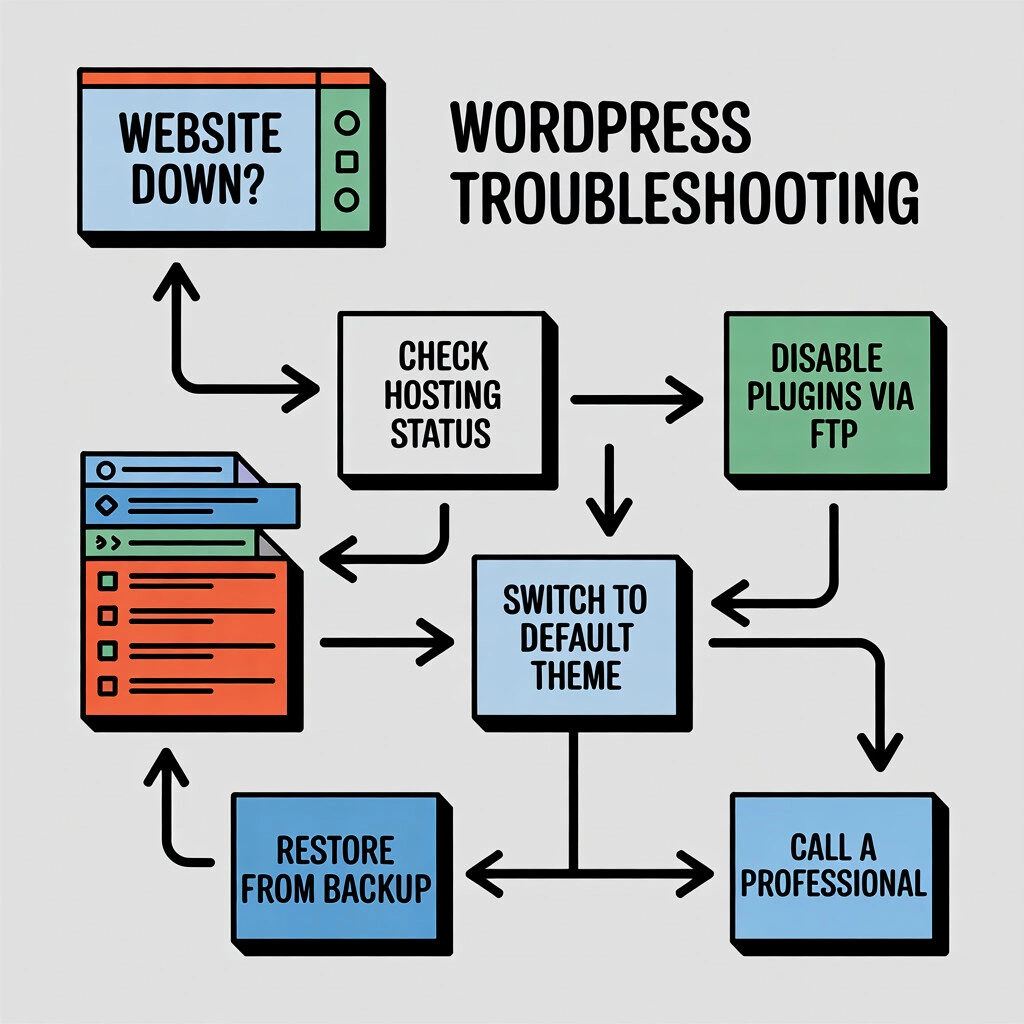
Step 2: Check Your Hosting Provider’s Status Page
Most quality hosting providers have a status page or a X account where they announce server-wide outages. A quick check can tell you if the problem is with their infrastructure, in which case you just have to wait for them to fix it.
Step 3: Verify Your Domain Name Isn’t Expired
It happens more often than you think. Log in to your domain registrar (the company where you bought your domain name) and make sure your domain registration has not recently expired.
Step 4: Recall Any Recent Changes You Made
What was the very last thing you did on your site? Did you just update a plugin or theme? Did you just install a new one? From my experience, the most recent change is almost always the cause of the problem.
The WordPress Repair Toolkit: A Step-by-Step Guide to Fixing Your Site
The Golden Rule: Always Backup Before You Begin
Even if your site is down, your host likely has a recent backup. Before you start changing files, perform a backup if you can, or at least confirm you have a recent one ready to restore. This is your safety net.
Enable WordPress Debug Mode to Uncover Hidden Errors
WordPress has a built-in debug mode that can reveal the specific PHP errors causing the problem. You can enable this by editing your wp-config.php file and changing define( 'WP_DEBUG', false ); to define( 'WP_DEBUG', true );.
WordPress will now tell you exactly what’s breaking instead of showing generic error messages.
Troubleshooting Plugins: The Most Common Culprit
How to Deactivate All Plugins via FTP When Locked Out
If you can’t access your admin dashboard, you can disable your plugins via FTP or your hosting file manager.
- Connect to your site via FTP.
- Navigate to the
wp-contentfolder. - Find the folder named
plugins. - Rename it to something like
plugins_old. This will deactivate all plugins. If your site comes back online, you know a plugin was the cause.
Troubleshooting Your Theme: Switch to a Default Theme
If plugins aren’t the issue, your theme might be. Follow the same process as above, but this time, rename your active theme’s folder inside wp-content/themes. This will force WordPress to fall back to a default theme.
Fixing a Corrupt .htaccess File
The .htaccess file can sometimes become corrupted. To fix this, log in via FTP, find the file in your site’s root directory, and rename it (e.g., to .htaccess_old). If this solves the problem, go to your WordPress dashboard (Settings > Permalinks) and click “Save Changes” to generate a fresh file.
Increase the PHP Memory Limit
Sometimes an error is caused by a process not having enough memory to run. You can try to increase the memory limit by editing your wp-config.php file.
How to Fix Specific WordPress Error Messages
Solving the ‘White Screen of Death’ (WSoD)
This is almost always a plugin or theme conflict. Follow the steps above to disable all your plugins and revert to a default theme to find the culprit.
Fixing the ‘Error Establishing a Database Connection’
This means your site can’t talk to its database. The first step is to check the database credentials (name, username, password) in your wp-config.php file. If they are correct, contact your hosting provider immediately.
Resolving the ‘This site is experiencing a critical error’ Message
This is the modern version of the WSoD. WordPress 5.2+ will often email the site admin with details about which plugin or theme caused the error. Check your email first, then follow the plugin/theme troubleshooting steps. Look for the “Recovery Mode” email WordPress sends you – it’s your backdoor to fixing the issue.
Fixing an ‘Internal Server Error’ (500 Error)
This is a generic server error. The most common fixes are checking for a corrupt .htaccess file or disabling your plugins and theme.
Getting Out of ‘Briefly unavailable for scheduled maintenance’ Mode
If your site gets stuck in maintenance mode after an update, simply log in via FTP and delete the file named .maintenance from your root directory.
Fixing Posts and Pages Returning a 404 Error
If your homepage works but other pages don’t, the fix is usually very simple. Go to your WordPress dashboard (Settings > Permalinks) and just click “Save Changes” to regenerate your rewrite rules.
Advanced Repair Methods & When to Call for Help
Scanning Your Site for Malware or Hacks
If you suspect your site has been hacked, you need to use a security scanner to find and remove any malicious code.
Repairing Your WordPress Database via phpMyAdmin
Some issues can be caused by a corrupted database table. There are tools within phpMyAdmin (accessible via your hosting panel) to repair your database.
Manually Re-uploading WordPress Core Files
If you suspect your core WordPress files have become corrupted, you can re-upload fresh copies via FTP.
The Final Option: Restoring Your Website From a Backup
If all else fails, restoring your site from a recent, clean backup is the most reliable way to get back online.
Know Your Limits: When to Hire a WordPress Professional
This is the point where I advise most business owners to pause. If you are not 100% comfortable editing core files, working with databases, or diagnosing security issues, it is always safer and more cost-effective to hire a professional.
How to Prevent Your WordPress Site From Going Down in the Future
Choose a Reliable Web Hosting
A quality host provides a stable environment and expert support, preventing many common issues.
Implement a Regular, Automated Backup Schedule
This is your most important insurance policy. Ensure your site is being backed up daily, automatically.
Keep WordPress Core, Plugins, and Themes Updated
Keeping your software updated is the single best way to prevent errors and security vulnerabilities.
Use a Staging Site to Test Changes Safely
Before running updates or adding new plugins to your live site, test them on a staging site first to catch any conflicts.
Monitor Your Website’s Uptime and Security
Use a service to monitor your site’s uptime so you are the first to know if it goes down.
FAQ
Conclusion: Keep Your WordPress Site Running Smoothly
A down website is a stressful but often fixable situation. By following a logical, step-by-step process, you can diagnose and repair many common WordPress issues yourself. However, the best strategy is always prevention through regular maintenance, reliable backups, and a quality hosting environment.
If you’re facing an error you can’t solve, or you’d rather have an expert handle your site’s health proactively, our team is here to help.