You’ve invested time, money, and effort into your website, but visitors are leaving before your pages even load. Sound familiar? A slow WordPress site loading isn’t just frustrating, it’s costing you customers, search engine rankings, and credibility.
Most business owners in Malaysia face this exact problem. They know their site is sluggish, but they don’t understand why. Without identifying the root cause, you’re stuck applying quick fixes that don’t address the real issues dragging down your performance.
This guide provides a clear, step-by-step framework for diagnosing the specific reasons your WordPress site is slow, empowering you to understand what’s happening behind the scenes and make informed decisions about fixing it. For comprehensive solutions, explore our website speed optimisation services designed specifically for Malaysian businesses.

The Core Causes: Uncovering the Four Main Reasons for a Slow Website
Website slowness is rarely random, it’s usually a symptom of problems in one of four key areas. Understanding these categories helps you pinpoint where to focus your diagnostic efforts.
Cause 1: Your Hosting Foundation
Your hosting provider serves as your website’s foundation. Good web hosting can improve your site’s speed significantly. Cheap, shared hosting is often the primary bottleneck causing consistent slow performance across your website performance and entire site.
Why hosting matters:
- Server response time (TTFB): If your server takes too long to respond, every page request starts behind the curve
- Server location: Hosting your site far from your Malaysian audience adds unavoidable latency
- Resource limitations: Shared hosting restricts CPU, memory, and bandwidth, creating performance caps
- Outdated infrastructure: Budget hosts often use older server technology that can’t keep pace with modern website demands
Warning signs your hosting is the problem:
- Consistently slow performance across all pages
- Frequent downtime or timeouts
- Slow WordPress admin dashboard
- Poor performance even with minimal content
Cause 2: “Heavy” Page Content
Large, unoptimised images and media files, including those implementing image optimisation and lazy loading techniques, are major culprits behind slow load times. When your pages carry too much weight, they take longer to download and display.
Common heavy content issues:
- Massive image files: Photos uploaded directly from cameras without compression
- Wrong image formats: Using PNG for photos or JPEG for graphics with transparency
- Oversized dimensions: Loading 3000px images when only 300px is needed
- Video embeds: Multiple YouTube or Vimeo embeds loading simultaneously
- Large downloadable files: PDFs, documents, or media hosted directly on your server
Impact on user experience:
- Slow initial page loads, especially on mobile connections
- Increased data usage for visitors
- Higher bounce rates as users abandon slow-loading pages
Cause 3: A Bloated WordPress Installation
WordPress’s flexibility comes with a downside, it’s easy to accumulate unnecessary plugins and choose poorly coded themes that significantly impact performance.
Plugin-related slowdowns:
- Too many active WordPress plugin: Each plugin adds code that must be processed
- Bloated page builder:
- Low-quality or abandoned plugins: Poorly written code creates inefficiencies
- Plugin conflicts: Multiple plugins trying to perform similar functions
- Outdated plugins: Security vulnerabilities and compatibility issues
- Bloated page builders: Heavy drag-and-drop builders that generate excessive CSS, JavaScript, and database queries even for simple layouts
Theme performance issues:
- Bloated themes: All-in-one themes packed with features you don’t need
- Poor coding practices: Inefficient database queries or excessive HTTP requests
- Inline CSS and JavaScript: Code that should be cached but isn’t optimised
Page builder performance impact: Many popular page builders generate bloated code, create multiple database queries per page load, and load unnecessary resources even when not actively editing. This is particularly problematic for sites built with heavy visual builders that prioritise ease of use over performance efficiency.
You might be surprised at how often these issues are overlooked, even by experienced website owners who focus on content rather than technical performance. Our WordPress maintenance services include regular plugin audits and performance monitoring to prevent these issues.
Cause 4: Too Many External Scripts
Third-party scripts like analytics, advertising networks, live chat widgets, and social media embeds can add significant load time by forcing your site to wait for external servers.
Common external script issues:
- Analytics overload: Multiple tracking codes from Google Analytics, Facebook Pixel, and other platforms
- Social media widgets: Live feeds, share buttons, and embedded posts
- Advertising networks: Banner ads and affiliate tracking scripts
- Live chat and support tools: Customer service widgets loading additional resources
- Font loading: External typography from Google Fonts or Adobe Fonts
The hidden impact: External scripts often load asynchronously, meaning your site waits for third-party servers that may be slow or unresponsive, creating unpredictable performance issues.
Your Diagnostic Toolkit: How to Find the Real Problem on Your Site
Armed with knowledge of the main causes, you can now systematically diagnose your specific performance bottlenecks using free, accessible tools.
Step 1: How to Correctly Use a Speed Test Tool (like webpagetest.org)
Speed testing tools provide objective data about your site’s performance, but you need to interpret results correctly to identify actionable problems regarding your web server performance.
How to run an accurate test:
- Choose the Right Location: Test from a server closest to your target audience (e.g., Singapore for Malaysian users).
- Test Multiple Pages: Don’t just test your homepage—check key landing pages and product pages.
- Run Multiple Tests: Performance can vary, so test 2-3 times and look for consistent patterns.
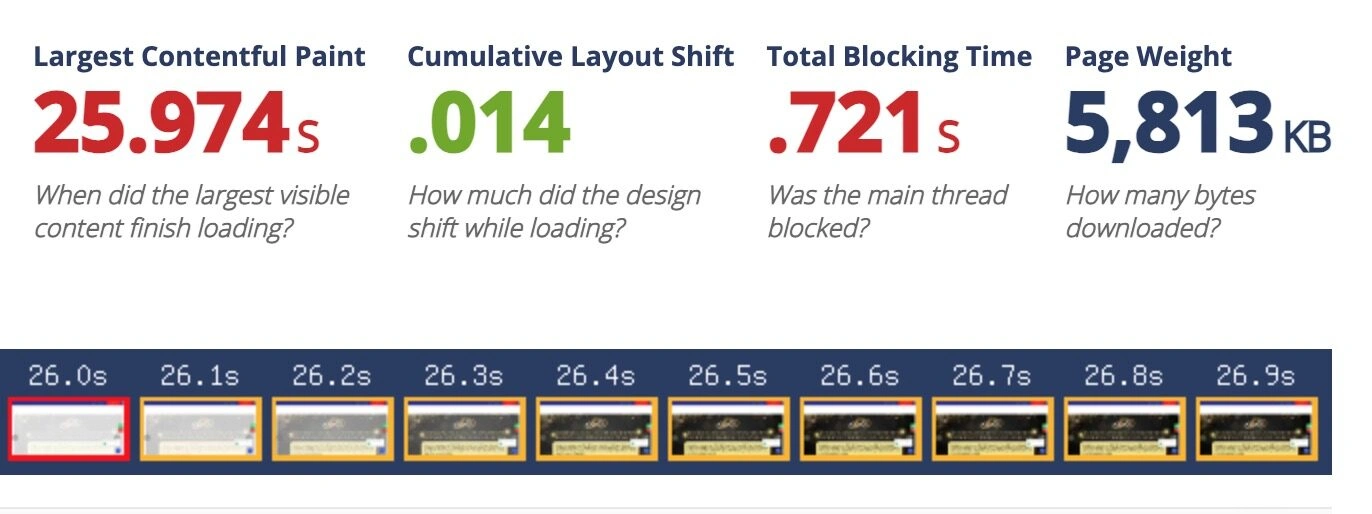
Step 2: Interpreting the Key Metrics
Understanding core performance metrics helps you identify which problems to prioritise.
- Largest Contentful Paint (LCP):
- What it measures: The time it takes for your main content to become visible.
- Good performance: Under 2.5 seconds.
- Time to First Byte (TTFB):
- What it measures: How quickly your server responds to a request.
- Good performance: Under 600 milliseconds. A high TTFB almost always indicates a hosting problem.
- Total Page Size:
- What it measures: The combined size of all downloaded resources.
- Reasonable target: Under 2MB for most business websites.
Most business owners don’t realise that focusing on these three metrics addresses the majority of performance issues more effectively than chasing perfect scores across dozens of minor factors.
Step 3: A Quick Plugin and Theme Audit
Answer: Systematically reviewing your WordPress installation and its associated WordPress database helps identify performance drains that accumulate over time.
Plugin audit checklist:
- Is it well-reviewed? Check the ratings and support forum activity on the plugin repository.
- Is it still supported? Check the “Last updated” date.
- Do I really need this? Deactivate plugins you’re not actively using.
My Expert Take: It’s Rarely Just One Thing
After analysing hundreds of slow WordPress sites for Malaysian businesses, I’ve learned that performance problems are almost never caused by a single issue. Instead, they’re typically the result of several smaller problems compounding each other.
For example, a site might have acceptable hosting, but the combination of unoptimised images, too many plugins, and external tracking scripts creates a perfect storm of slowness. This is why quick fixes, like installing a caching plugin or compressing a few images—often provide minimal improvement.
It’s something every growing business must consider sooner or later: comprehensive performance optimisation requires systematic diagnosis and coordinated fixes across multiple areas. That’s why professional website speed optimisation is often more effective than piecemeal DIY attempts.
Real-world insight: The most successful performance improvements I’ve implemented address hosting, website optimisation, content optimisation, website revamp for code cleanup, and script management simultaneously, treating the website as an integrated system rather than isolated components.
You can check the websites we revamped ServerFreak / Enfrasys, Unitar which is under our wesbite maintanance & support. All pages load in under 2 seconds.
FAQ
Conclusion: From Diagnosis to Action
Identifying the “why” behind your slow WordPress site is the critical first step toward achieving the fast, reliable site performance your business deserves. Most business owners think they can fix speed issues with quick web hosting solutions but lasting improvements require understanding and addressing the root causes.
Now that you understand how to diagnose the problems systematically, the next step is implementing targeted fixes. For detailed tutorials on the specific actions to take, including recommendations for the latest version of PHP, read our Website Load Speed Improvement Guide for Malaysia.

The Ultimate Guide to WordPress Speed & Security for Malaysian Websites

Website Load Speed Improvement Guide for Malaysia

How to Speed up WordPress for Google PageSpeed Insights & GTMetrix ([year])
However, if you’d prefer an expert to perform a comprehensive diagnosis and handle the technical implementation, our website speed optimisation services provide professional audits and systematic performance improvements. For ongoing performance maintenance, explore our WordPress maintenance services to prevent future slowdowns.